How the Internet Works: A No-Nonsense Guide for Everyone
In this article we will take a look at various internet related jargon and simplify them such that it doesn't intimidate you any further.

I'm passionate about continuous learning, keeping myself up to date with latest changes in the IT field. My interest is in the areas of Web Development (JavaScript/TypeScript), Blockchain and GenAI (focusing on creating and deploying memory aware AI-powered RAG applications using LangGraph, LangFuse, QdrantDB and Neo4J). I welcome professional connections to explore new ideas and collaborations.
Let’s face it: internet jargon is confusing. Words like HTTP, TCP, and DNS sound like secret code, but they’re just tools that make the web work. After five years of building apps, I’ve learned that breaking these terms down makes them far less intimidating. Let’s simplify them together.
Why This Matters
Understanding these jargon helps you to:
Debug websites faster (using the Network Tab).
Grasp why some apps feel slow (blame UDP or HTTP/1.1!).
See through buzzwords like Web3 (spoiler: it’s still HTTP and TLS doing the work).
First - HTTP: The Mail Carrier of the Web
HTTP (Hypertext Transfer Protocol) is like a procedure made for delivery service for websites. It defines how your browser should ask for data (like a web-page) and how servers should send it back.
Five Things You Should Know About HTTP
It’s Human-Friendly
HTTP uses plain text, so you can literally read what’s being sent between your browser and a server.
This is why you can:
Open Chrome’s Network Tab to watch requests in real time.
Hit “Inspect Element” to tweak a website’s code (don’t worry—it won’t break anything!).
It ‘Forgets’ You Instantly
HTTP is stateless, meaning it has no memory. Every time you visit a site, it treats you like a stranger—even if you just logged in.
So how do websites “remember” you?
- Cookies: Servers send your browser a tiny ID card (a cookie). Next time you visit, your browser shows this ID, so the server knows it’s you.
Headers Are Like Sticky Notes
Every HTTP request and response includes headers—little notes with extra info.
Like:“This request is from Chrome” (via ‘User-Agent’ header)
“Please send data in Spanish” (via ‘Accept-Language’ header)
Requests and Responses 101
You ask for something like:
GET: Fetch a web-pagePOST: Submit data in a form (like login details)
The server replies like:
200 OK: Success!404: Page not found (ever seen a “broken link”?)500: Server error (the website’s having a bad day).
HTTP Keeps Evolving
HTTP/1.1 (1997): Handles basic text and images. Still widely used.
HTTP/2 (2015): Loads multiple files at once (like a grocery bag with 10 hands).
HTTP/3 (2022): Uses QUIC (a faster protocol) underneath to reduce delays (just for your information).
Time To Learn Some Terms
| Term | Full Form / Definition | Analogy |
| TCP | Transmission Control Protocol | A reliable postal service—guarantees your letter arrives intact. |
| UDP | User Datagram Protocol | A speedy courier—fast but no guarantees (like live video calls). |
| FTP | File Transfer Protocol | how to send heavy files like images, documents, etc |
| IP address | Internet Protocol Address | Your computer’s GPS coordinates on the internet. |
| URL | Uniform Resource Locator | A human-friendly shortcut (like typing “coffee shop” instead of its latitude/longitude). |
| OSI | Open Source Interconnect | A model that demos how data is sent between computers via it’s seven layers (we will cover this later) |
| Payload | The actual data being transmitted | The handwritten note inside an envelope (e.g., your login details). |
| Cache | Temporary storage for reused data | Your browser’s junk drawer—stores frequent downloads to save time. |
No need to memorise any of these.
The Invisible Rules: OSI Model, TCP & UDP
1. The OSI Model – The Internet’s Assembly Line
Imagine building a car: one team designs the engine, another adds the wheels, and a final group paints it. The OSI Model works similarly—it breaks internet communication into 7 layers with 3 prominent layers, each handling a specific task:
HTTP operates in the Application Layer (Application, Presentation and Session Layers are collectively referred to as Application Layer), while TCP/UDP work in the Transport layer. No need to worry about the other layers FOR NOW in order to keep things simple.
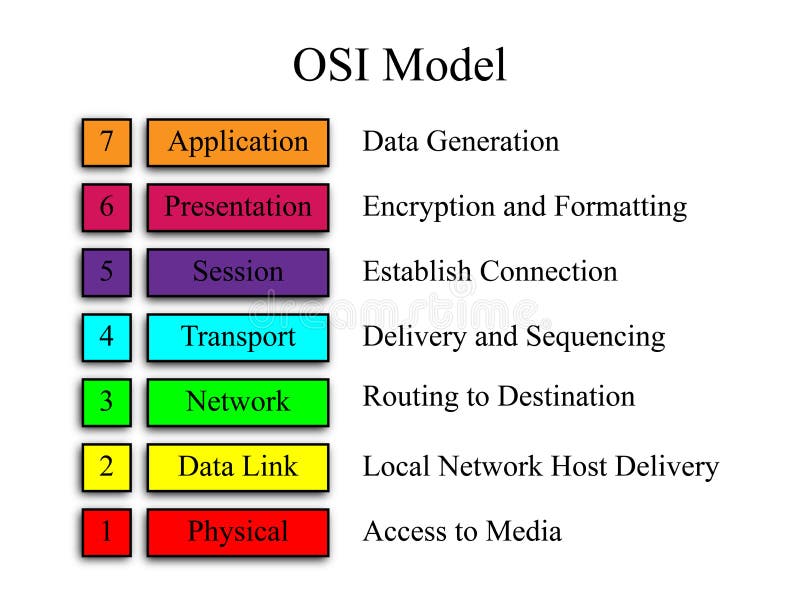
Therefore, let’s keep our focus on the three layers for now and save the rest for later.
2. TCP’s Three-Way Handshake – The “Digital High-Five”
Before sending data, TCP ensures both devices are ready using a 3-step handshake:
SYN (Client): “Hello server”
SYN + ACK (Server): “Hey Client!” + “Can you hear me?”
ACK (Client): “I can hear you!”
How HTTP versions use this:
HTTP/1: New handshake for every request (slow for modern sites).
HTTP/1.1: One handshake, multiple requests (like reusing a delivery truck).
HTTP/3: Skips TCP entirely—uses UDP (no handshake, faster starts).
3. UDP – The “Throw and Pray” Protocol
UDP sends data without checks or handshakes. It’s like shouting into a crowded room—fast, but no guarantee everyone hears you.
Where it shines:
Live video calls (a glitchy pixel won’t ruin the call).
DNS lookups (quickly translating
youtube.comto an IP).
HTTP/3’s twist: It adds reliability on top of UDP (via QUIC), combining speed with error-checking.
What Happens When You Visit a Website?
Let’s say you type google.com into your browser:
DNS: The Internet’s Phone-book
DNS Resolution
Your browser asks a DNS server (via port 53 in UDP) to translate
google.cominto an IP address (like142.250.189.206) in a process called -DNS Resolution.Let’s take a look at the steps involved in this process:
      Step 1: You type "google.com"
                 │
                 ▼
      Step 2: Browser asks DNS Resolver
                 │
                 ▼
      Step 3: Resolver asks Root Server
              (only 13 logical Root Server networks exist globally, with thousands of physical copies)
                 │
                 ▼
      Step 4: Root Server responds: "Ask the .com nameserver"
              (.com is one of the TLD (Top Level Domain) nameservers)
                 │
                 ▼
      Step 5: Resolver asks .com nameserver
                 │
                 ▼
      Step 6: .com nameserver responds: "Ask Google’s authoritative nameserver"
              (e.g., GoDaddy, Cloudflare, etc.)
                 │
                 ▼
      Step 7: Resolver asks Google’s authoritative nameserver
                 │
                 ▼
      Step 8: Authoritative nameserver replies: "Google’s IP is 142.250.189.206"
                 │
                 ▼
      Step 9: DNS Resolver gives the IP to the browser.
Connecting to the Server
Once you get the server’s IP, your browser and Google’s server establish a TCP connection (a reliable way to send data).
If the site uses HTTPS (the secure version of HTTP), they perform a TLS handshake to encrypt the connection.
Sending the Request
Your browser sends a request like:
“GET https://google.com”
Headers: “I’m Chrome, and I speak English.”
Payload: Optional data (like your search query).
Server Responds
The server sends back:
A status code (e.g.,
200 OK).The webpage data (HTML, images, etc.).
Connection Closes
- HTTP doesn’t keep the connection alive. Once the data is sent, the conversation ends.
Final Word
The internet isn’t magic—it’s just a bunch of rules everyone agreed to follow. Once you know the basics, you’ll see patterns everywhere. I hope this article has helped you to uncover the magic behind internet to some extend.
This article avoids complex terms on purpose. For nerdy details, check out HTTP Basics or DNS Explained.


